
Scaling & presets
Pick a resource preset (CPU / RAM / storage), change it live, and enable auto-scaling with auto-pay.
Each project runs on a resource preset that sets its CPU, RAM, and storage. You can change the preset on a running project without a code change, and optionally enable auto-scaling so the platform sizes the app up under load.
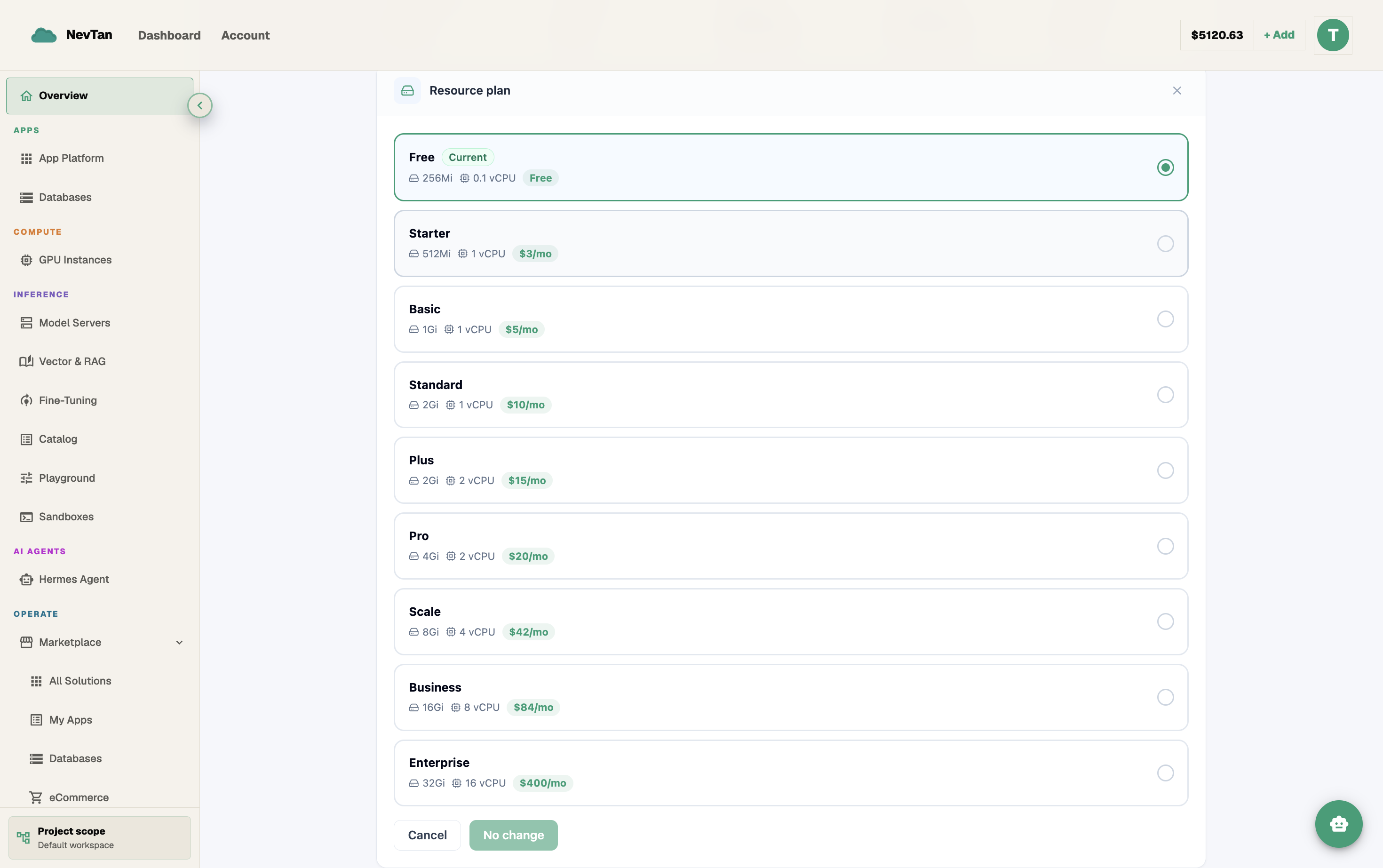
Resource presets
Presets range from Starter to Enterprise. Changing tiers from the project's Resource Plan tab rolls out the new size with no downtime.
Auto-scaling
Toggle auto-scaling from Monitoring → Auto-Scale Settings so the project grows automatically when it needs more resources. Set a memory and a CPU threshold (both measured as a percentage of what your plan allocates); when either is exceeded for three checks in a row, the project moves up to the cheapest plan that actually adds more of whatever ran out. This matters most for apps with spiky or unpredictable traffic — a launch, a marketing push, a batch job — where sizing for the worst case up front would mean paying for idle capacity the rest of the time.
Auto-scaling requires auto-pay, because every scale-up is a real charge: one billing period at the new size, taken from your credit wallet and then your saved card, with your next renewal moving out a full period from that date. If it cannot be paid for, the scale-up is skipped and you get the usual usage alerts instead.
Scaling out at the top plan
Once a project is on the largest preset there is nothing bigger to move to, so auto-scaling scales out instead: it starts an additional container — on the same host if there is room, otherwise on another server with capacity — and load balances your traffic across all of them. Extra containers are priced as their own instances and appear on the Monitoring page, and they follow the project everywhere: they are rebuilt on redeploy, stopped and resumed with it, and removed when it is deleted.