
Sharing resources
Assign a project, database, or GPU instance to a team so members can use it — and remove it when you're done.
Share your infrastructure with a team by assigning a resource to it from the console. Members then use the resource according to their role.
What you can share
| Resource type | Shares |
|---|---|
| Project | An App Platform project. |
| Database | A managed database. |
| GPU instance | A GPU instance. |
Share a resource
- 1Open the team's sharing screenFrom the team page, go to its shared resources list.
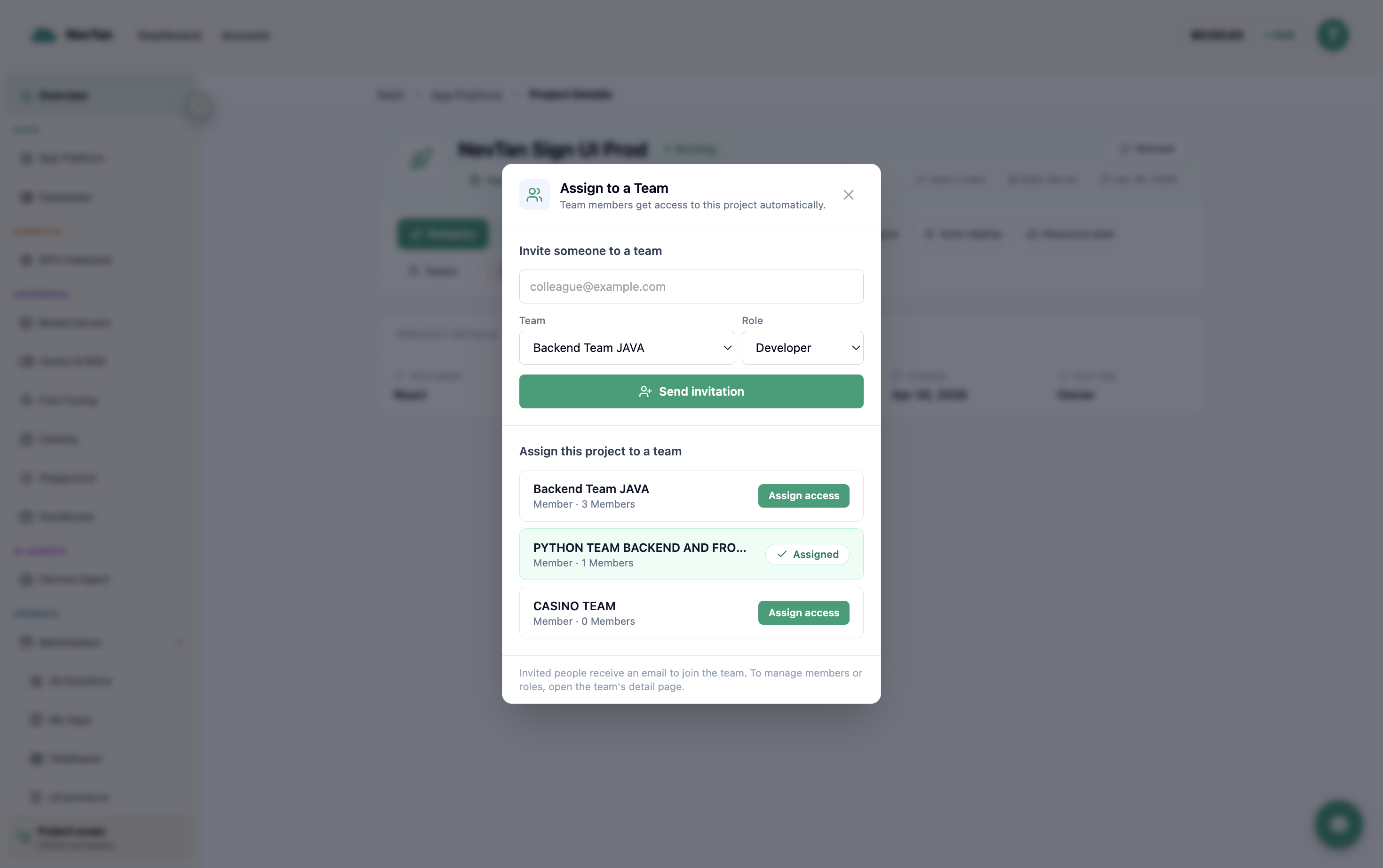
Invite someone straight to a team, or assign an existing project to one — same modal. - 2Pick a resource typeChoose project, database, or GPU instance from the type dropdown.
- 3Pick the resourceSelect which of your projects, databases, or GPU instances to share — the list only shows resources you own.
- 4ConfirmThe resource now appears for team members, scoped by their role.
Sharing with more than one team
The same resource can be shared with several teams at once — a project used by both a backend and a frontend team, for example. Sharing it with a second team adds access rather than moving it, so the first team keeps everything it had. Each team sees the resource in its own resource list, and each member's access is still decided by their role in whichever team they belong to.
Remove a shared resource
Un-share a resource at any time from the same list — members lose access immediately, but the resource itself is untouched. Removing it from one team leaves it shared with any others; un-sharing everywhere means removing it from each team.
What "scoped by role" means in practice
A shared resource doesn't become a free-for-all — every team member still hits it through the lens of their own role. Concretely:
| Resource | Viewer | Member | Admin / Owner |
|---|---|---|---|
| Database | See that it exists and its status. | Connect to it and run queries against it. | Also manage the sharing itself — un-share it or share it further. |
| GPU instance | See that it exists and its status. | Use it to run workloads. | Also manage the sharing itself — un-share it or share it further. |
| Project | See that it exists and its status. | Use it day to day. | Also manage the sharing itself — un-share it or share it further. |
In other words, sharing decides which team gets access to a resource; role decides how much any one person in that team can do with it once shared. Viewer is always look-only, member can operate the resource, and admin/owner adds the ability to manage the share itself — none of them can do more with the resource than its type actually supports.