Public access
Public-read buckets serve objects to anyone with the URL, optionally through a custom domain or as a static website.
A Public read bucket serves its objects to anyone with the object's URL — no credentials needed. A Private bucket (the default) requires either a signed request from an access key, or a short-lived presigned link generated from the console or API.
Public URLs
Once a bucket is Public read, any object in it is reachable at a path built from the bucket's endpoint, its name, and the object's key. The console's Files tab shows a Copy public URL action on each object in a public bucket — use that rather than constructing the URL by hand.
Custom domain
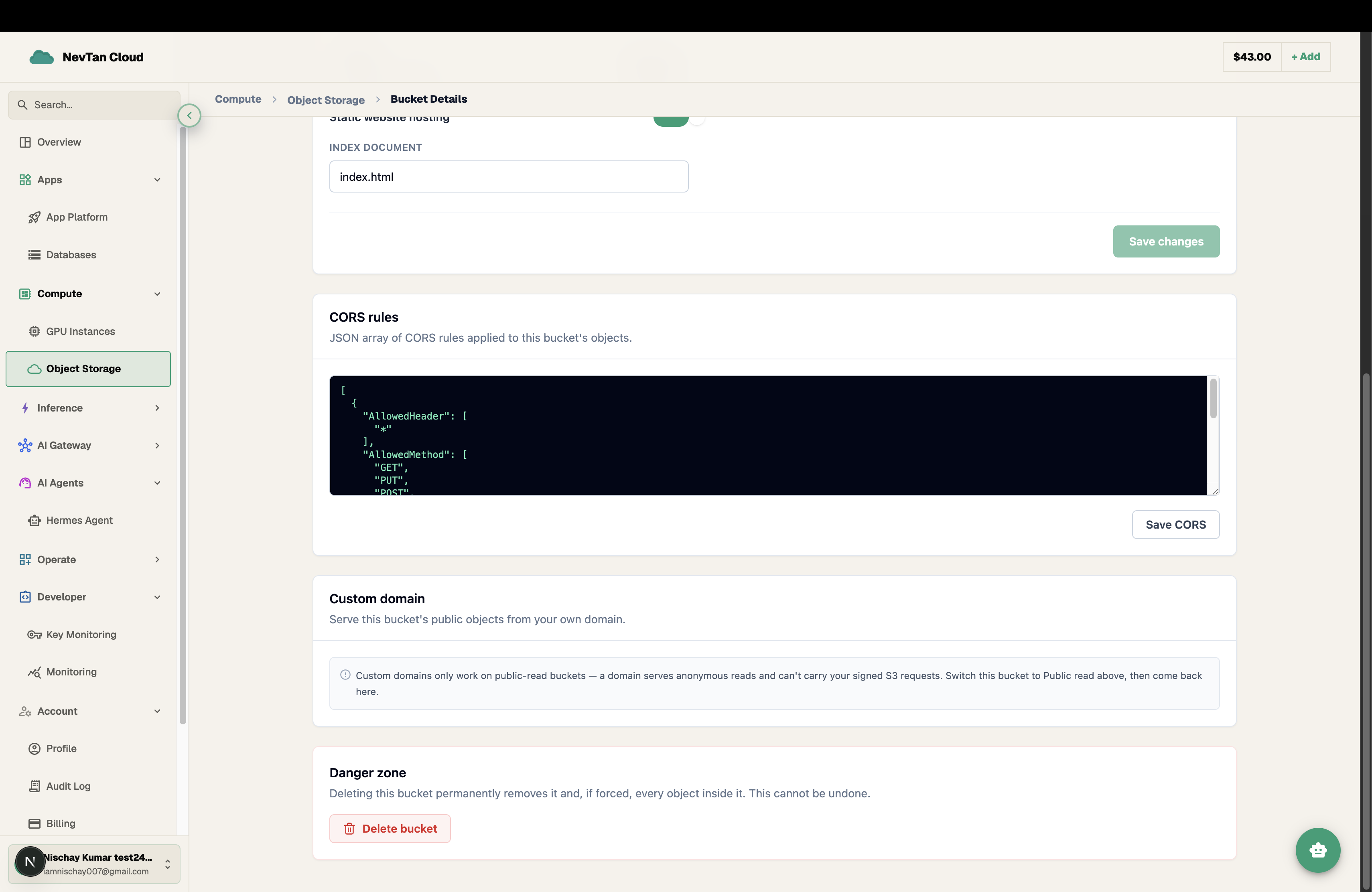
Serve a public bucket's objects from your own domain instead of the platform's. Available on Public read buckets only, from the bucket's Settings tab.
- 1Point DNS at the platform firstAdd an A record for your domain pointing at the address shown in Settings, before connecting it — the certificate step below depends on DNS already resolving.
- 2Enter your domain and connectType the domain (e.g.
assets.example.com) into the Custom domain field and click Connect. This automatically requests a TLS certificate for it. - 3Wait for it to go liveIf DNS was already pointed correctly, the domain is live over HTTPS within moments. If the certificate request fails because DNS hasn't propagated yet, the domain still serves over plain HTTP in the meantime — retry once DNS has caught up.
Static website hosting
Turn on Static website hosting in a bucket's Settings tab to serve it as a simple static site — set an index document (defaults to index.html) and the bucket serves that file at its root, the way any static-site host would.